Features


Global Shortcuts

Click here to see an overview of all global shortcuts.
GameSwitcher


The GameSwitcher is designed to be the central user interface of Onion.
Launch the GameSwitcher by pressing the MENU button.
The last game played will be resumed in a few seconds, and with the simple press of a button, save your progress and turn off the console.
It also allows you to quickly change games and many other features:
- Quick boot your last played game.
- Quickly switch games from your history.
- Remove a game by pressing X.
- Full overlay with accurate brightness, battery readings and playtimes.
- Press SELECT to toggle playtime display.
- Minimal view mode: Press Y to toggle.
- Improved Sleep Mode with full game suspension (press POWER).
- Low battery indicator: Red frame when <15% (can be adjusted in Tweaks).
- When the battery goes below 4%, the device will automatically save and exit to prevent losing progress.
Package Manager

- Choose the systems and apps you need.
- Optimized presets, homebrew apps, and more.
- Packages are divided into three sections:
- To reinstall a package, first toggle it off and press START to apply, then open Package Manager, toggle it on and apply.
Tweaks
Make Onion your own!

- System settings: Startup behavior, auto-save and exit, vibration
- Custom shortcuts: Single/long/double press MENU, and launch apps or tools via X or Y in MainUI
- Known limitation: Some apps can't be launched this way (for now only Music Player / GMU is known not to support this)
- User interface: Show/hide recents/expert tabs, theme overrides
- Advanced: Quick access to advanced emulator settings, plus a submenu to reset different settings
- Tools: Sort favorites, fix thumbnails, remove OSX system files

Search


- The Search app lets you search all your games.
- Note: For now only verified systems are supported (the ones that are in the
Gamestab).
- Note: For now only verified systems are supported (the ones that are in the
- You'll find Search under
Apps- and it's a popular choice for mapping to X or Y (via Tweaks). - When a search is active, the results will be shown under
Games›Search, you can remove the search again by choosing "Clear search". - "Missing caches" lists all systems which haven't been cached yet, and thereby haven't been included in the search.
- Reason: All game caches are cleared everytime you "Refresh all roms".
- Solution: Go into each system you want included in the search.
Filter
- Filter is available via
Package Manager›Apps, installing it will add the following shortcuts at the bottom of each game list:- Filter: Will prompt you to enter a keyword for filtering the selected game list.
- Refresh roms: Will refresh roms only for the selected game list.
- Note: If you're using a
miyoogamelist.xmlyou will need to add an entry for~Filter.miyoocmdand~Refresh roms.miyoocmd.
Themes

- Preview and change themes.
- Get more themes from our ❤️ community
Activity Tracker

- Track your game playtimes (format
h:m). - View your total playtime in the top bar (format
h:m). - Share your playtimes by taking a screenshot (press MENU+POWER - screenshot is saved in
Screenshots).
RetroArch
Rebuilt for Miyoo Mini - synched with RA main
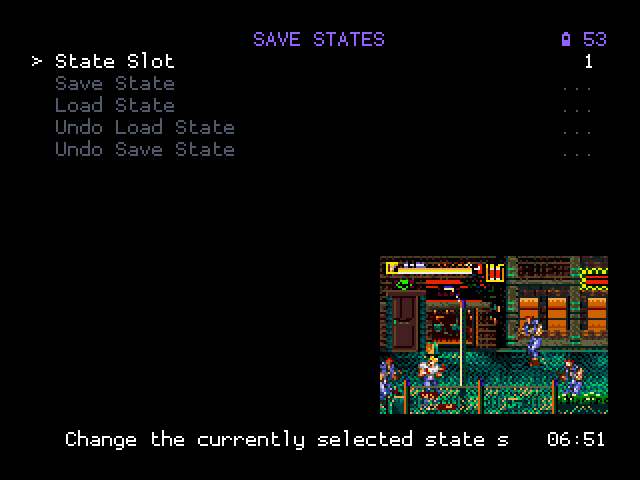
- Save State Thumbnails enabled
- Compiled and partially rebuilt by Eggs for precision and performance
Custom audio driver, custom scalers, new display driver, and a new input driver
- Minimal input and audio lag
- Customs cores
- Fine-tuned with optimal best settings for the Miyoo Mini in mind
- Crisp 640×480 resolution
- Can also work as a game launcher
Cores embedded, playlists and favorites unlocked
- Rotation support for arcade games
- Custom video filters
You can now modify, or create your own
Some examples of video filters made for this RetroArch port (click to view full resolution):
Normal_3X:
LCD filters, click to magnify (Integer scaling):

Guest Mode
Guest mode is a separate profile so you can safely lend your device to your kid or your friend. The profile contains the following properties:
- Saves
- States
- Video filter and scaling options
- Core options
- Custom button remapping layouts
- RetroArch history
The Game Switcher list will be different to reflect this
- RetroArch playlists and favorites
- Timers for your games Play Activity app
- RGUI config RetroArch Graphic User Interface
Personal files gathered in one place
Your saves and most of your preferences are now in /Saves (Example: D:/Saves/).
This also includes your secondary profile, your config files, RetroArch lists and play activity database.
Simply copy this folder when you want to backup your data.
MainUI improvements
- Battery percentage is shown in the top bar
You can configure the battery percentage visibility and color in the theme configuration file. It is also possible to make a theme that only shows the percentage text.
- No more audio lag Credit: Eggs
- New default theme inspired by the Lilla theme by Evolve Credit: DiMo
- OnionOS icon by Evolve
- Textures are compressed for faster results Credit: DiMo
- Box art size fix in the included themes Credit: DiMo
Others
- Many additional systems supported
- Experimental Arduboy support Credit: JMARoeder
- Updated PICO emulator to Fake08 standalone Credit: Supergrom
- Support for game system icon packs
Drag and drop custom icons into the
Iconsfolder at the root of your SD - Boxart moved to
/Roms/[SYSTEM]/Imgsfor easier scraping - Various bug fixes and optimizations